title: Step 3: Publish Knowledge Pipeline
Step 3: Publish Knowledge Pipeline
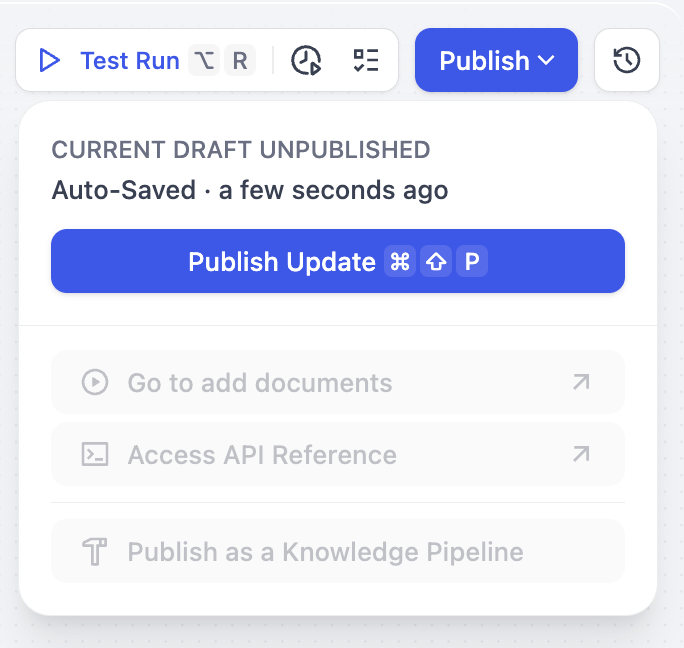
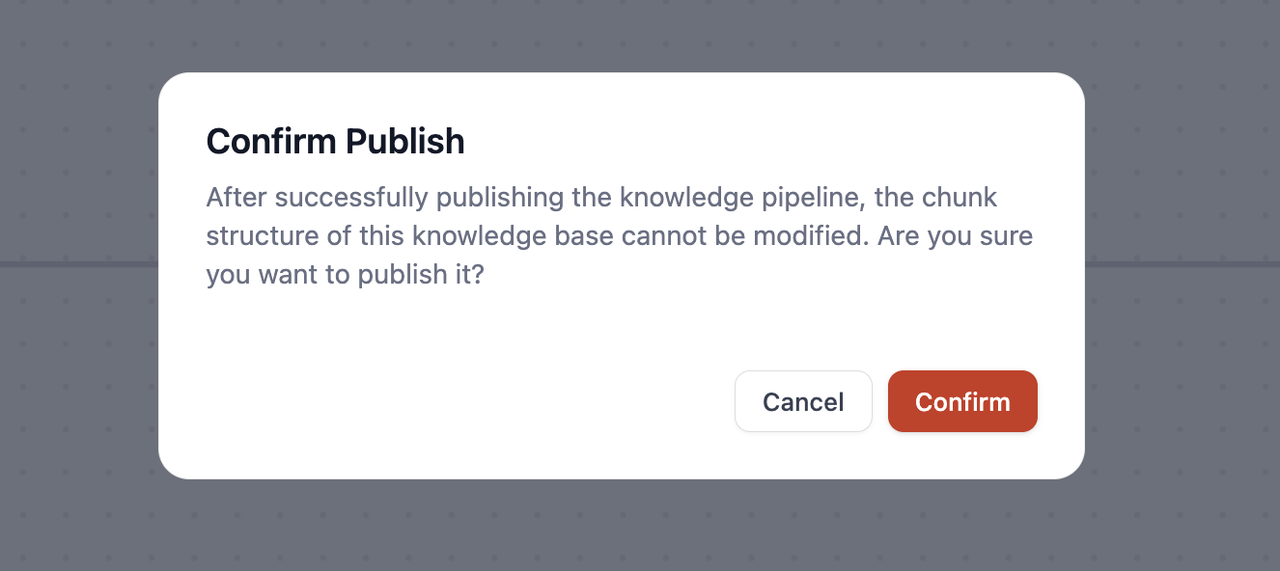
After completing pipeline orchestration and debugging, click Publish and Confirm in the pop-up window.
Warning:
Important reminder: Once published, the chunk structure cannot be modified.
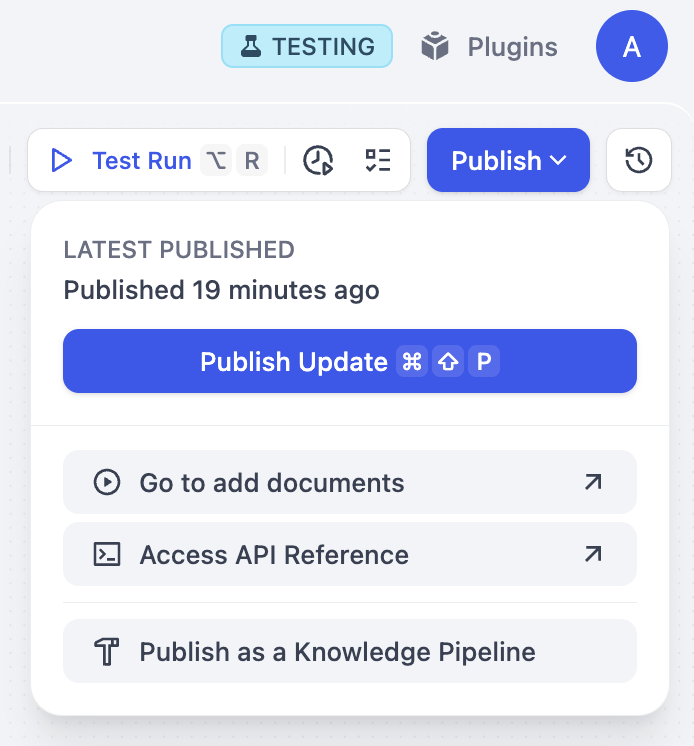
Once it is published, you can:
**Add Documents (Go to add documents)** Click this option to jump to the knowledge base data source selection interface, where you can directly upload documents.
**Access API (Access API Reference)** Go to the API documentation page where you can get the knowledge base API calling methods and instructions.
**Publish as a Knowledge Pipeline** you can optionally use **Publish as a Knowledge Pipeline** to save it as a reusable template that will appear in the Customized section for future use.
**Add Documents (Go to add documents)** Click this option to jump to the knowledge base data source selection interface, where you can directly upload documents.
**Access API (Access API Reference)** Go to the API documentation page where you can get the knowledge base API calling methods and instructions.
**Publish as a Knowledge Pipeline** you can optionally use **Publish as a Knowledge Pipeline** to save it as a reusable template that will appear in the Customized section for future use.
Warning:
Limitation: Publish as a Knowledge Pipeline is not available in Sandbox plan. To save and publish as a knowledge pipeline, please upgrade to professional or team plans.